https://codepen.io/Xander-Rynerson/pen/ZEgVoxz
This is my basic atomic number game, made to help you learn the elements! It covers the first 30 elements of the periodic table. You’ll get a target atomic number, and your job is to use the arrow keys to move the little blue circle onto the matching element symbol. Get it right and you’ll see a green “Correct!” and earn two points. Get it wrong and you’ll see a red “Incorrect!” and lose one point. The game goes on forever, but you can press “P” to pause whenever you want. When you’re done, just close the tab.
I STRONGLY recommend clicking the fullscreen button in the top-right corner of the game window before you start. It gives you a lot more room to move. Without it, there are so many incorrect elements bouncing around that your score can dive straight into the negatives. Not exactly ideal.
There’s also one little glitch: occasionally, the correct element seems to disappear because two symbols bounce into each other and overlap. If that happens, look for the symbol hiding “under” another one and try approaching it from that side. Worst case, you lose one point. I’ve memorized all 118 elements, so I sometimes forget how tricky these can be. Double-check before randomly guessing!
One hint: if the target number is 23, pick “V” for vanadium. I figured that might be one of the less familiar ones. For 21, I’ll let you decide between “S” and “Sc”. Only one of those is right!
Want more of a challenge? Here are versions with more elements than the original 30:
Up to 54 elements (ending at a special one): https://codepen.io/Xander-Rynerson/pen/NWQeLZm
Up to 71 elements (another special stopping point): https://codepen.io/Xander-Rynerson/pen/JjgwmoJ
All 118 elements: https://codepen.io/Xander-Rynerson/pen/OJKrBXq
Now for my drawing app! I coded it myself in Python, and it’s almost 3,000 lines long. I personally recommend giving it a try! It’s mostly pretty solid, although it can get a bit laggy when you have a lot of things on the canvas, especially with Perfect Draw. If something starts acting strangely, making a new page usually helps. I’m planning more updates to fix bugs, with some help from modern AI agents.
You can download it below. It’s made for Macs! Windows and Linux aren’t officially supported. If you’re comfortable tinkering with computers, you might be able to adapt the Python code for another operating system, but I haven’t tested that. macOS can also be rather enthusiastic about warning you about apps that aren’t signed by Apple.
https://drive.google.com/file/d/1ythUrFJoXKn7A1ai6ISwUVlA9zuze2L-/view?usp=sharing
Click “Download” and then wait. I know it will say this message, but click “Download anyway”. I wrote the python script and just converted it to an app: this is not harmful in any way. It just is automatically programed to say that “.zip” files are harmful, because in many cases they are because it’s easy to put a virus in there and make it do harm. So, bottom line: this is not harmful at all. Click “download anyway”.
If it says “allow downloads on drive.google.com?”, click “yes” or “accept” or something like that. If you don’t, it won’t let you download the app.
Go to the “downloads” icon and double-click on the NewDrawing icon. (I called it new drawing because it can be used to make new drawings; i use it
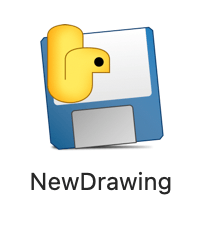
It might say “This file can’t be opened because Apple can’t scan it for viruses”, or some message akin to that. If it does, this is easy to fix. Instead of single-clicking the icon, double-click it (don’t drag it into the app bar yet), and then select “Open”. It might say that same message, but now, an actual “open” button will still pop up. Click that. If it only works that one time or still doesn’t work, go to the next fix shown here. If it works fine, drag it into the app bar, then you’re done.
I know it has a very good chance of saying “Damaged file” or something like that. If it does, click “Cancel” NOT “Move to trash” and then spotlight search (command + space) and type in “terminal”. Click on this icon application:
Then, copy and paste this command:
xattr -rd com.apple.quarantine /Users/your-computer-name/Downloads/NewDrawing.app
Replace the your-computer-name with your computer’s actual username, like mine is xanderrynerson. Yours should show like the XanderRynerson in this:
xanderrynerson@XanderRynersons-MacBook-Pro ~ %
Now drag the app from your downloads into the toolbar at the bottom of your screen, wherever you want it, between whatever two apps. Click on it to open it, like with any app. Yay! You did it! You can contact me if it still doesn’t work, but remember: I don’t want to get a bunch of emails because you didn’t read the message: This ONLY works on Macintosh computers.
Remember, it takes about 10 seconds to load after you open the app. Don’t think it’s broken unless it takes more than 20 seconds.
If you want to change the icon, you can two-finger-click the app, then hover over “options”, then click “show in finder”. Then you two-finger-click it in finder, and then click “get info”. Then, you two-finger-click the file of the new icon you want, then click “copy”. Go back to that “get info” page, then double-click (not two-finger click) on the current snake thing icon, then press “Command”+”V” on your keyboard, replacing the icon.
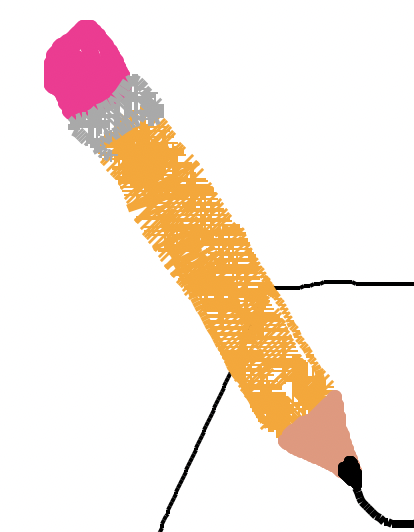
The icon I personally recommend you use is right here (I made it with the app):
Remember to drag it from the “downloads” list onto your desktop before you try to use it.
This is kind of annoying all because the apple team hasn’t certified my app (I haven’t put it out yet, because that would be expensive.)